

What’s New in Filmora 16: Wondershare Introduces Smarter Tools for a More Connected Editing Workflow
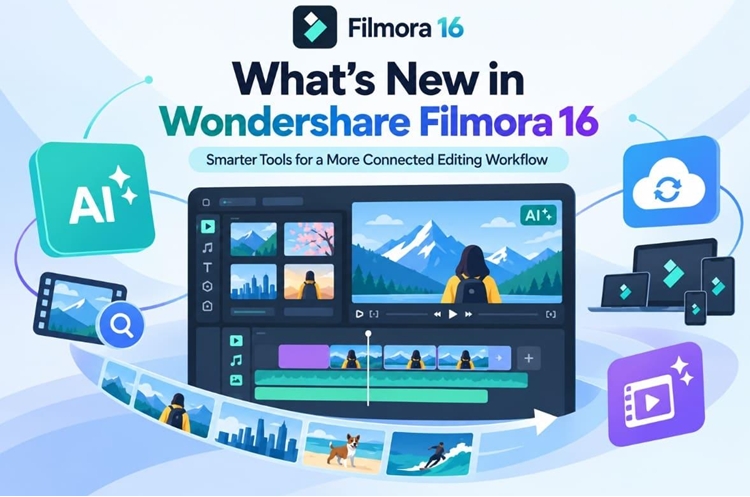
Shenzhen, China – October 15, 2026 – Video editing often becomes time-consuming before the creative work even begins. Sorting through footage, reviewing captions, and keeping visual elements aligned can slow down an otherwise straightforward project. Creators need more efficient ways to handle repetitive tasks while keeping the editing process connected and easy to manage.
Wondershare Filmora 16 brings these tasks into a more connected editing workflow. Its major new features include AI Media Analysis, Camera Tracking, Smart Text Correction, Colour Mask, Multi-Source Recording, and 360° Video Reframing. Together, they support different stages of production, from footage review and capture to framing, captions, colour refinement, and 360° editing.
Part 1. What’s New in Filmora 16
Wondershare Filmora 16 expands the editing workflow with several tools aimed at reducing repetitive work from capture through delivery. Rather than adding features in one corner of the interface, the release spreads them across media review, tracking, text, colour, recording, and immersive video editing.
- Search Footage With AI Media Analysis: Analyse supported videos and images to generate keywords, descriptions, ratings, and editing suggestions that help editors understand and prioritize footage before detailed editing begins.
- Follow Movement With Camera Tracking: Track a selected Head, Body, or Custom target and automatically adjust the framing as the subject moves through the shot.
- Reframe 360° Footage Into Standard Video: Choose the viewing angle, perspective, and camera movement after recording, then turn supported 360° footage into standard video for timeline editing and sharing.
- Catch Subtitle Errors With Smart Text Correction: Highlight potentially incorrect subtitle sections during Speech to Text and provide suggested fixes for review before captions are finalised.
- Target Specific Areas With Colour Mask: Apply colour adjustments to selected areas using shape, Pen, or AI masks without changing the rest of the frame.
- Record Multiple Sources Together: Capture screens, cameras, microphones, and system audio in one synchronised session, then edit supported sources separately on the timeline.
Together, these additions broaden what the Filmora video editor can handle before, during, and after timeline editing. Four of these features illustrate how Filmora 16 supports different stages of a modern editing workflow, so they are worth examining in more detail.
Part 2. How Filmora 16 Streamlines Key Editing Tasks
A feature list explains what Filmora 16 includes, but not where those tools actually save time. The 4 features below target different points in the workflow, from sorting media and tracking movement to correcting text and reframing 360 footage:
1. AI Media Analysis: Make Footage Searchable Before You Edit
AI Media Analysis reviews supported videos and images before detailed editing begins. It can identify subjects, scenes, locations, actions, and other visual context, then generate keywords, descriptions, ratings, and editing suggestions. These results help editors narrow down larger media libraries and prioritise clips for closer review without opening every file one by one.
From Project Media, select one or more supported media files and start AI Media Analysis. Filmora shows the required credits before generation begins. Click “Generate” to start analysing the selected media file. Once finished, review the generated insights, including keywords and other available analysis results.
2. Camera Tracking: Keep Moving Subjects Properly Framed
Camera Tracking follows a selected subject and adjusts the video framing as that subject moves through the shot. Editors can choose the option of “Head,” “Body,” or “Custom” target depending on what needs to remain in view. Filmora then analyses the movement and creates smoother subject-following framing, reducing the need for repeated manual reframing or keyframing. Here’s how to set up Camera Tracking and apply it to a clip:
Step 1. Add the Clip to the Timeline
Create a project, click “Import” to bring the video into “Project Media,” then drag it to the “Timeline.” Tracking works on a timeline clip, not on a file sitting in the media panel.
Step 2. Choose What to Track, Then Start
Select the clip, open “Video,” and find “Tracking.” Enable “Camera Tracking,” then pick “Head,” “Body,” or “Custom” depending on what the shot contains. Adjust the available settings and click “Start Tracking” to analyse the movement.
Step 3. Preview and Refine the Subject Tracking
Play the tracked section and check whether the selected subject remains properly framed throughout the movement. If the framing drifts or loses the target, adjust the tracking settings and run the analysis again. Once the framing looks right, continue editing the project or export the finished video when the rest of the edit is complete.
3. Smart Text Correction: Streamline Caption Review
Speech-to-Text in Filmora 16 converts spoken dialogue into editable captions and can generate subtitle output such as SRT files. When Automatic Correction is enabled during the Speech-to-Text workflow, Smart Text Correction identifies potentially incorrect text and provides suggested fixes for review. This helps editors focus on likely transcription errors instead of checking every subtitle line with the same level of attention.
The setup stays simple. Choose the language, add translation if needed, select “SRT” as the output, enable “Smart Text Correction,” and press “Generate.” Suggestions still need human review, especially for names and unusual terms.
4. 360º Video Reframing: Turn 360º Clips into Flat Video
Immersive footage can become a conventional flat video by choosing the viewing direction yourself. The final export reflects that selected framing rather than staying interactive, so composition becomes part of the edit instead of something applied after the rest of the timeline is finished.
Import support varies by camera format and operating system. Compatible MP4 360 footage can be recognized through its metadata. On Windows, supported Insta360 .insv footage can use Filmora’s documented SDK conversion workflow. DJI .osv footage should first be exported as MP4 through DJI’s official software before importing it into Filmora for editing and reframing.
|
Panorama Parameter |
What It Adjusts |
|
FOV |
Zooms the view in and out |
|
Horizontal Angle |
Pans the view left and right |
|
Vertical Angle |
Tilts the view up and down |
|
Camera Distance |
Adjusts the viewing distance |
|
Roll |
Rotates the view, including horizon correction |
In 360 preview mode, the player becomes part of the reframing process. You can drag directly inside the preview to change direction and scroll to adjust zoom. From there, three controls shape how the shot develops:
- Change the Projection Style: Switch between Wide Angle, Linear, Fisheye, and Tiny Planet to control how the 360 footage appears in the final frame.
- Apply Camera Movement Presets: Use built-in motion presets to create controlled viewpoint movement.
- Animate the Framing Over Time: Add keyframes to supported FOV controls to adjust the viewpoint progressively throughout the shot.
Before building a project around the feature, there are two practical limits to consider. Export creates a flat video using the selected framing, keyframes, and motion effects, while full 360 video export is not currently supported.
The hardware requirements are also higher than standard editing. Windows requires version 10 or later, an Intel Core 8th-generation or AMD Ryzen 3000-series processor or newer, 16 GB of RAM, and a GTX 1660 or better. macOS requires version 11.0 or later with an Apple M1 chip or newer.
Part 3. Who Can Get More From Filmora 16
The value of these features becomes clearer when matched to the workflows they support. Wondershare Filmora 16 can be particularly useful for the following creators:
|
Users |
What Changes for Them |
|
Creators Publishing Weekly |
Searchable footage and captions with AI assistance for faster review |
|
Anyone Shooting 360 |
A route from 360 capture to a flat deliverable without leaving the editor |
|
Editors Working With Moving Shots |
Camera Tracking automatically follows the selected subject and reduces repeated manual reframing in shots with moving subjects |
A practical way to evaluate these features is to test them with your own footage. The Filmora free download allows you to try the editor on a recent project and determine which new tools can make your workflow more efficient.
Conclusion
Filmora 16 brings several useful improvements to everyday video editing, from faster footage discovery and camera tracking to smarter caption review and 360º reframing. These additions help reduce repetitive tasks while keeping the editing process familiar. Together, these updates make Filmora 16 more flexible for creators who want a smoother, more connected workflow without adding unnecessary complexity.
About Wondershare
Wondershare is a global software company providing creative and productivity solutions for individuals and businesses. Its portfolio includes products for video editing, document productivity, data management, and other digital workflows.
Media Contact
Company Name: Wondershare
Contact Person: Tianyu Wu
Email: Send Email
Country: China
Website: https://filmora.wondershare.com/


